Connect with a cable
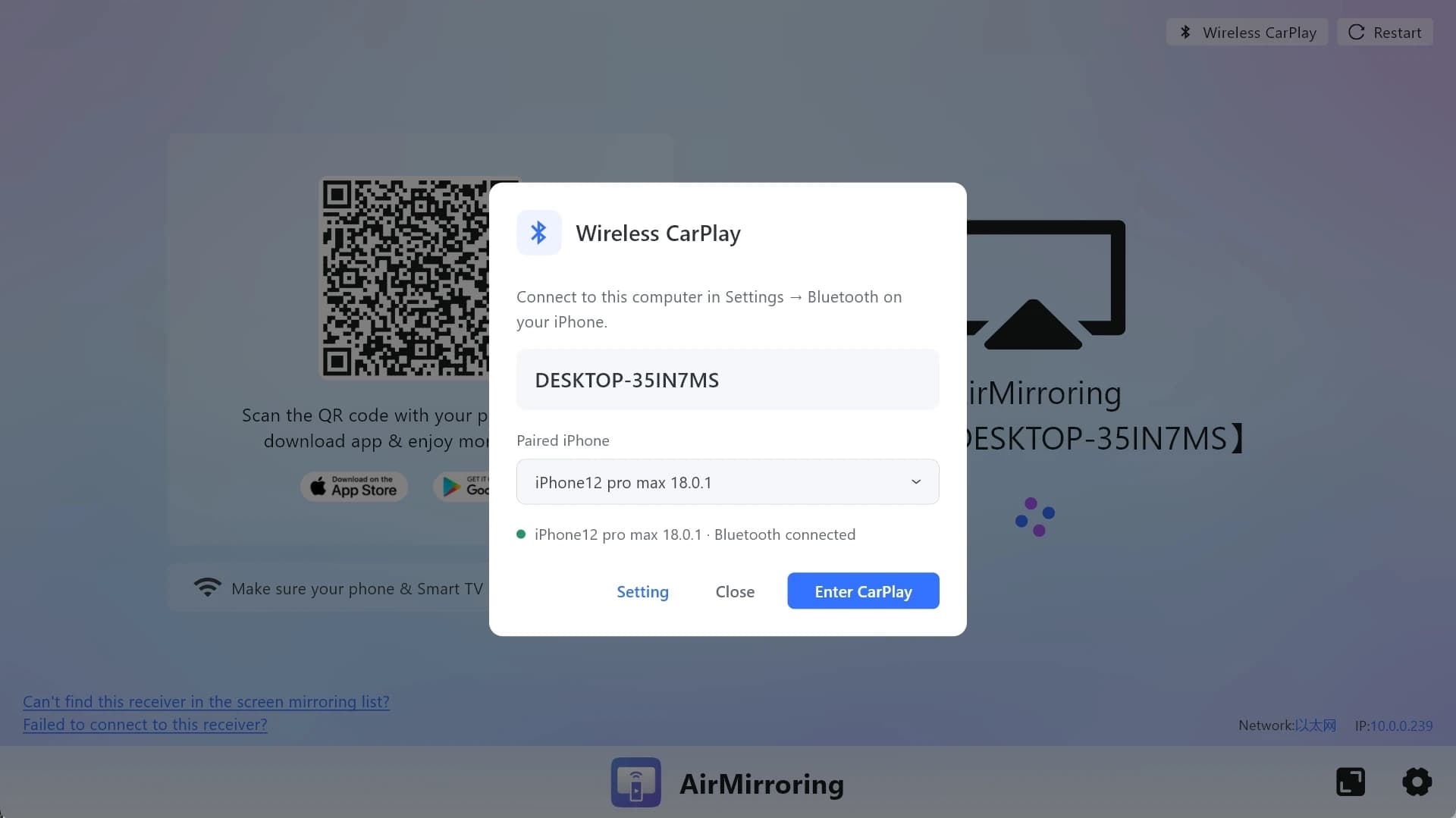
Connect your iPhone to your Windows PC using the wired method supported by AirMirroring. Follow the app’s prompts to start CarPlay.
YOUR IPHONE. CARPLAY ON YOUR PC.
Turn your Windows PC into a CarPlay receiver with AirMirroring. Connect your iPhone with a cable or wirelessly and bring its CarPlay interface to your computer.
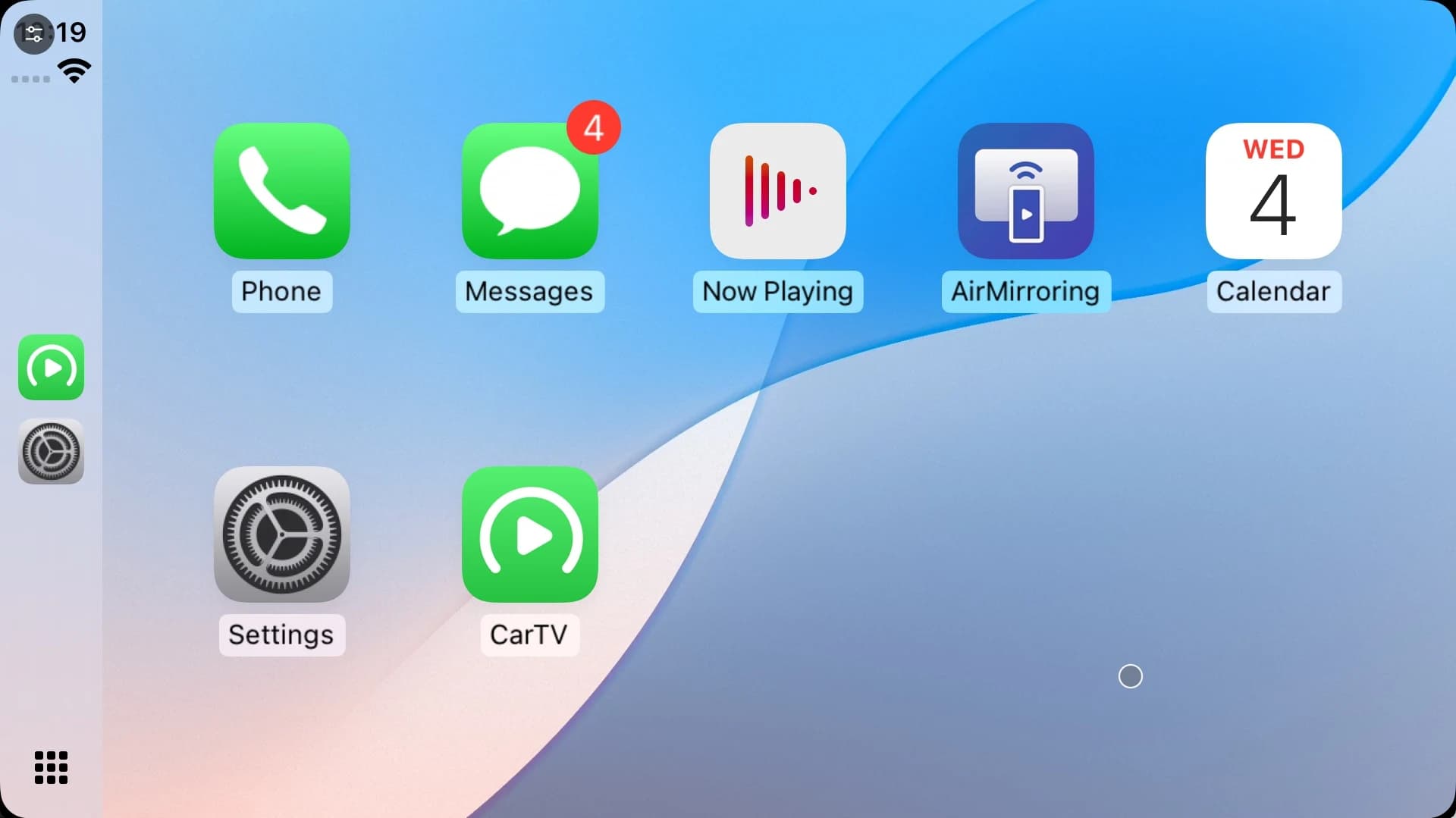
A CARPLAY RECEIVER FOR WINDOWS
Use CarPlay on your PC with the iPhone you already own.
AirMirroring receives your iPhone’s native CarPlay interface on a Windows desktop or laptop. Your iPhone provides the CarPlay session, and your PC becomes the receiving display.
Open the CarPlay interface on your computer through the Windows app’s CarPlay receiver feature.
TWO WAYS TO CONNECT
HOW IT WORKS
Start with your Windows computer and a CarPlay-capable iPhone. Choose a wired or wireless connection supported by your setup.
Get the Windows app from the Microsoft Store and open it on the computer you want to use as the display.
Choose a supported wired or wireless connection and follow the app’s setup prompts.
Start the CarPlay receiver feature in AirMirroring to display your iPhone’s CarPlay interface on Windows.
A FEW USEFUL ANSWERS
Yes. AirMirroring for Windows acts as a CarPlay receiver. Connect your iPhone to the PC and display its native CarPlay interface on your Windows screen.
This feature receives your iPhone’s native CarPlay interface. It is a separate feature from mirroring the iPhone’s entire screen, so CarPlay content and apps are presented through the CarPlay interface.
Yes. The CarPlay receiver feature supports wired and wireless connections from your iPhone to Windows. Follow the setup prompts in AirMirroring for the connection method you choose.
Your Windows PC is the CarPlay receiving display for this setup. Connect your iPhone to AirMirroring on the PC to use the feature.
This CarPlay feature receives from an iPhone. Android Auto is a separate system, and Android phone support is not included in this feature’s stated compatibility.
Check the current Microsoft Store system requirements for the Windows app. For compatibility with your exact CarPlay setup, contact support with your iPhone model, iOS version, Windows version, and AirMirroring version.
Get AirMirroring from the Microsoft Store using the links on this page. The CarPlay receiver is a feature of the Windows app.
GET AIRMIRRORING FOR WINDOWS
Get AirMirroring and use your Windows PC as a CarPlay receiver.