FOR ANDROID TV
AirMirror
for Android TV
Bring your Apple screen to your Android TV. Open the AirMirror receiver on your television, then share from your iPhone, iPad, or Mac over the same Wi-Fi.
Android TV receiver · iPhone, iPad & Mac senders · In-app purchases
Open Screen Mirroring on your Apple device
Same Wi-Fi. Ready to share.
FEATURES
Your Android TV. An Apple-friendly screen.
Give your Apple devices a way to share on the Android TV in your living room, classroom, or meeting space.
Receive your Apple screen
Use Screen Mirroring on a compatible iPhone, iPad, or Mac to send its display to the AirMirror receiver on Android TV.
Share photos on the television
Bring personal pictures from your Apple device to the big screen for a slideshow everyone can enjoy.
Receive videos and web media
Cast supported personal videos and web media from compatible sending apps when their playback rules allow it.
Play audio through your TV
Send supported music and audio from your Apple device to the Android TV receiver over your local network.
Start from built-in AirPlay
Install the receiver on Android TV and use your Apple device’s own Screen Mirroring control for the native AirPlay route.
Control supported playback
Use playback controls on your receiving device for supported media, with landscape and portrait viewing options.
HOW IT WORKS
From your Apple device to the TV, in three steps.
- 01
Open AirMirror on Android TV
Install the receiver from Google Play on a supported Android TV, open it, and note the receiver name shown on screen.
- 02
Connect to the same Wi-Fi
Make sure your iPhone, iPad, or Mac and Android TV share the same local network. Keep the receiver open on the TV.
- 03
Select your TV in Screen Mirroring
Open Control Center on your Apple device, choose Screen Mirroring, and select the receiver name displayed by AirMirror.
COMPATIBILITY
Apple on one side. Android TV on the other.
AirMirror on Google Play is the receiving app for Android TV. Your Apple device sends the screen; the television displays it.
- Receiving screen
- A supported Android TV that can install AirMirror from Google Play
- Sending devices
- Compatible iPhone, iPad, and Mac devices
- Mirroring method
- Apple AirPlay through the sender’s built-in Screen Mirroring control
- Media sharing
- Supported photos, video, and audio from compatible Apple devices or sending apps
- Connection
- Apple device and Android TV on the same local Wi-Fi network
This product receives on Android TV; it is not an Android-phone-to-TV sender app. Check availability for your exact TV in Google Play. Protected streaming video, including Netflix and paid movie services, is not supported through this mirroring route.
EVERYDAY SCENARIOS
A shared screen for work, play, and everything between.
Put the Android TV you already have to work with the Apple devices you use every day.
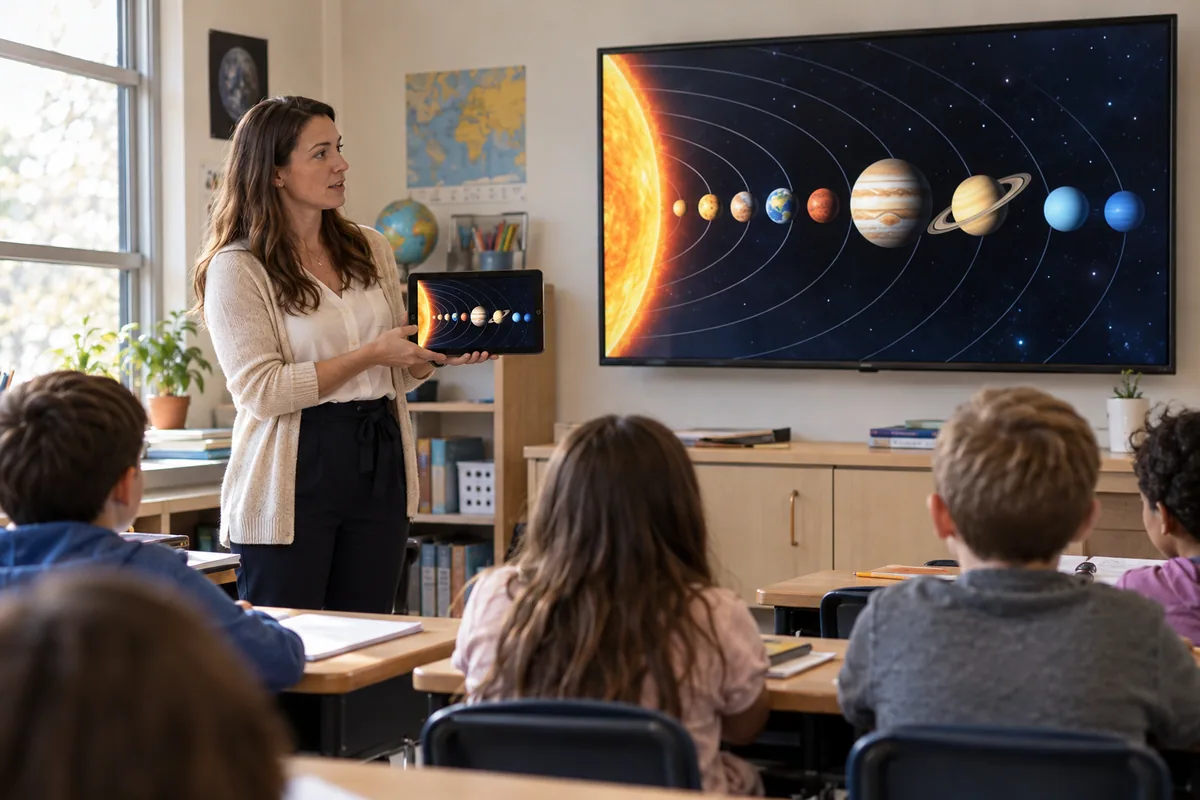
Show the lesson to the room
Share teaching material from an iPhone or iPad to a supported Android TV so everyone can follow along.
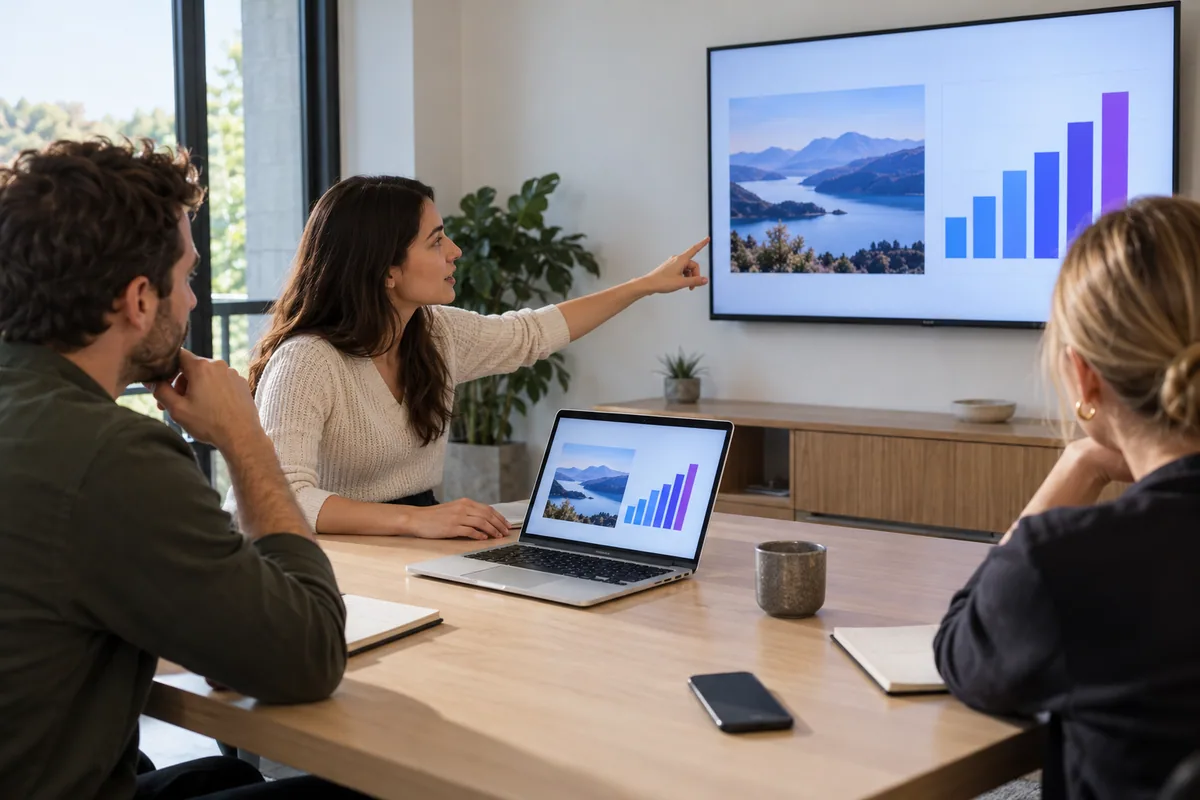
Present from your Apple device
Bring a presentation or working document from your iPhone, iPad, or Mac onto the meeting-room television.
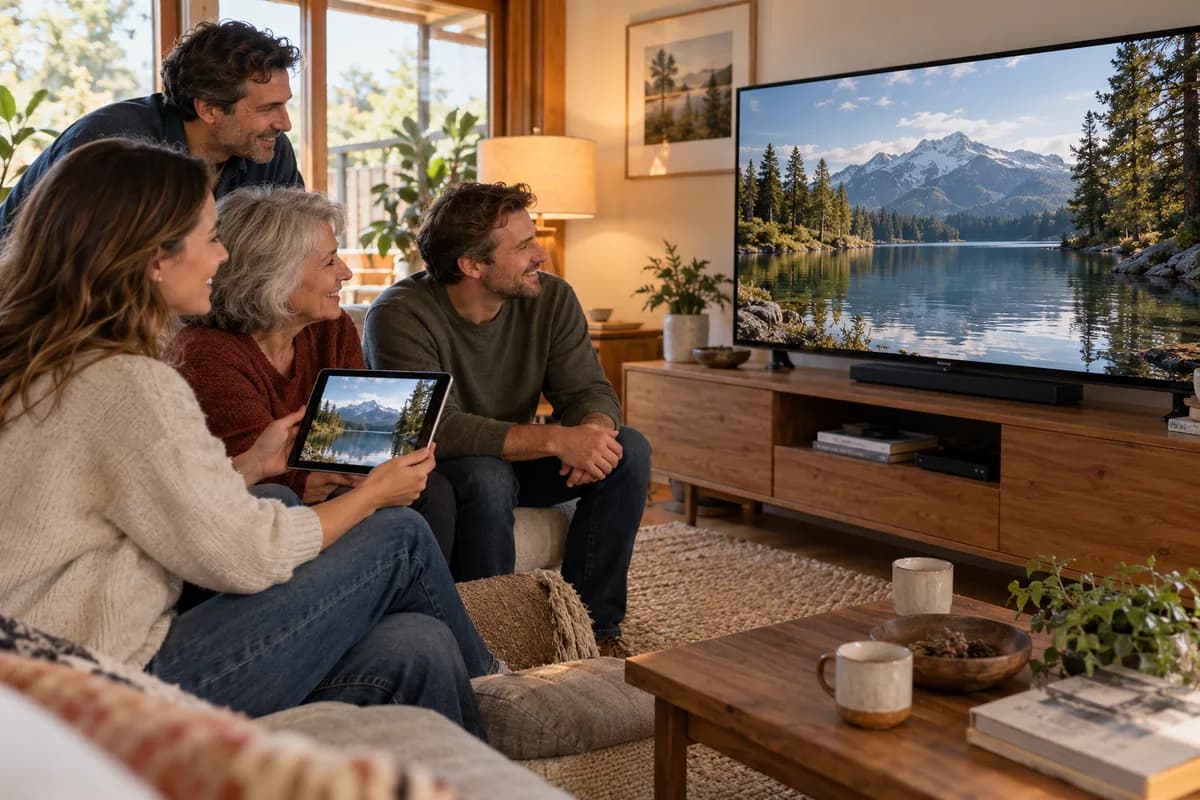
Share memories on the sofa
Show travel photos and personal videos to friends and family without passing your device around.
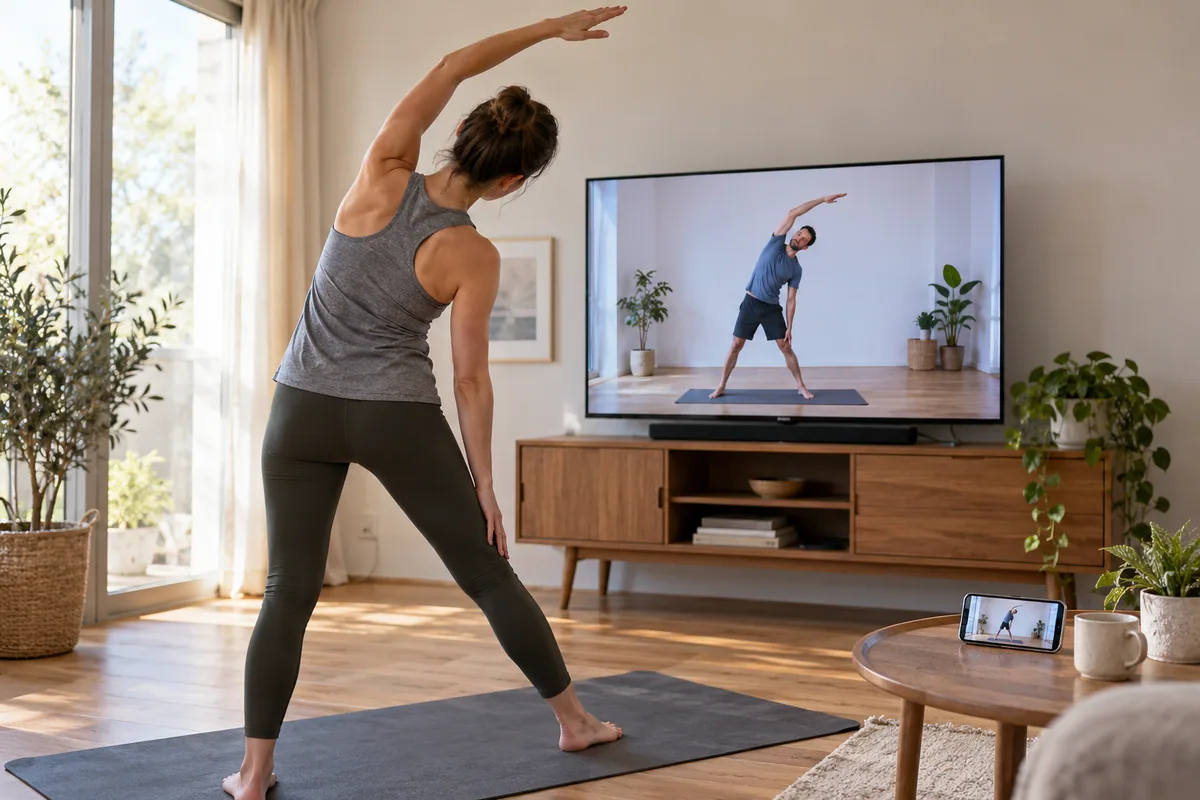
Give your routine a larger view
Share a supported workout video or play music from your Apple device through the TV, where the source app permits playback.
FAQ
A few answers before you connect.
Is this an Android phone casting app or an Android TV receiver?
This Google Play product is the Android TV receiver. It receives screen mirroring and supported media from an iPhone, iPad, or Mac. It is not the Android-phone sender app used to cast an Android phone’s own screen to a TV.
Do I need to install another app on my iPhone, iPad, or Mac?
Not for the native AirPlay Screen Mirroring route. Install and open AirMirror on Android TV, then use Screen Mirroring on your compatible Apple device. Sending particular media through an app may have separate compatibility requirements.
Why is the AirMirror receiver not appearing on my Apple device?
Keep AirMirror open on the TV and check that both devices are on the same local network. Guest Wi-Fi, network isolation, or a VPN can prevent discovery. Restart the receiver and Apple device if needed, and confirm your TV can use the current Google Play version.
Can I play Netflix or paid movies through the receiver?
The receiver does not support DRM-protected content such as Netflix, paid iTunes videos, or paid Google Movies. Use the service’s supported TV app or playback method instead. Personal photos and unprotected videos are better starting points for testing mirroring.
Is the Android TV receiver free to download?
The Google Play listing offers a download with in-app purchases. Check the current app listing and purchase screen for available features, upgrade terms, and prices in your region. It should not be assumed to provide every feature without limits.
READY FOR A BIGGER VIEW?
Your Apple screen, now on Android TV.
Install the AirMirror receiver on your supported Android TV and start sharing from your iPhone, iPad, or Mac.