Hitachi Wireless Display: Match the TV and Phone
TL;DR: “Hitachi Wireless Display” is not one feature across every Hitachi TV. Find the model number and its manual. If the Source menu contains Wireless Display, use a Miracast-capable Android phone or Windows PC. An iPhone needs AirPlay, an AirPlay receiver, or HDMI; it cannot natively send Miracast.
Check the Model Before Connecting
Hitachi-branded TVs have shipped with different platforms, menus, and regional manufacturers. Do not infer Miracast, Google Cast, or AirPlay from the logo alone.
| TV/manual says | Best sender path | Important limit |
|---|---|---|
| Wireless Display or Miracast | Compatible Android or Windows | Sender must also support Miracast |
| Chromecast built-in/Google Cast | Cast-enabled mobile app | App casting is not always full-screen mirroring |
| AirPlay | iPhone, iPad, or Mac | Confirm exact model and same LAN |
| None of these | HDMI or compatible external receiver | No hidden universal wireless switch |
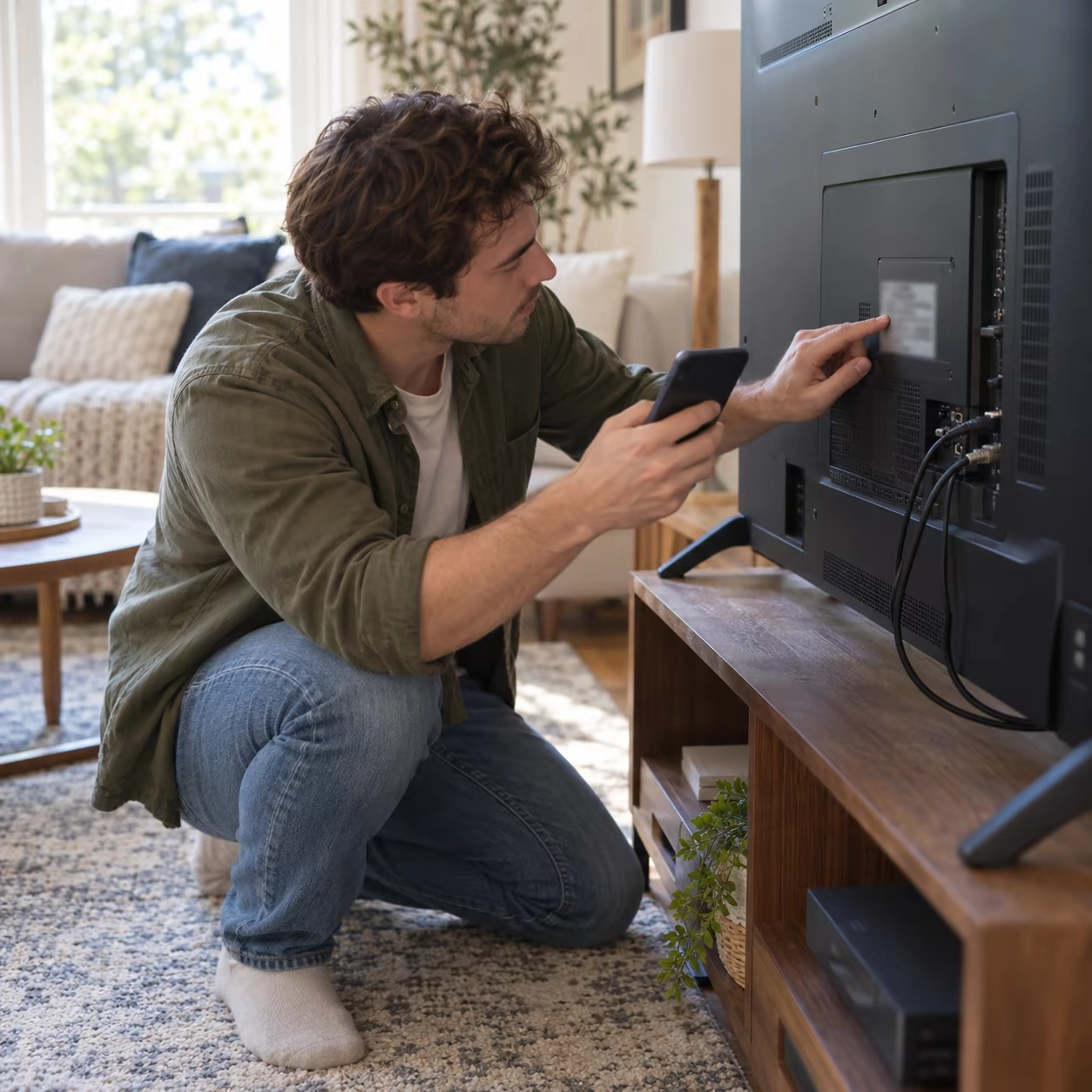
Some Hitachi manuals instruct users to press Source and select Wireless Display; others expose Miracast inside a Smart Hub. A different model may run Android TV or Google TV and use Google Cast instead. Use the rear-label model number in Hitachi or retailer support before following a menu path.
Start at Argos Product Support and enter the complete model or product number. As one verified example, the Hitachi 50HB26T72U manual documents Source > Wireless Display. That path is evidence for 50HB26T72U, not every Hitachi TV.
Connect Android to Hitachi Wireless Display
These steps apply only when the manual confirms Wireless Display or Miracast.
- Press Source/Input on the TV remote.
- Select Wireless Display, Screen Mirroring, or Miracast and leave the waiting screen open.
- On the Android phone, open Quick Settings and tap Smart View, Wireless Display, Screen Cast, or the maker's equivalent.
- Select the TV name and approve the request on the TV.
- Rotate the phone or open media after the connection completes.
Android “Cast” can mean Google Cast rather than Miracast. Pixel phones, for example, do not provide a general native Miracast sender. If the TV never appears, confirm the phone's protocol instead of repeatedly restarting it.
Connect a Windows PC
For a Miracast-ready Hitachi TV, open the Wireless Display source, then press Windows + K on a compatible Windows PC and choose the TV. If Windows reports that a cable is required or the TV is absent, check the PC's Miracast support and wireless drivers. A Windows desktop with Wi-Fi disabled may not offer wireless display even when Ethernet provides internet.
After connecting, press Windows + P and choose Duplicate for the same picture on both screens or Extend for a second desktop. If sound stays on the PC, select the Hitachi display in Windows sound output while the session is active.
Connect iPhone or Mac
iPhone and Mac use AirPlay, not Miracast. If the exact Hitachi model supports AirPlay, put both devices on the same network, enable AirPlay on the TV, then use Control Center > Screen Mirroring.
If the TV runs Android TV and can install receiver apps from Google Play, AirMirror can receive compatible iPhone, iPad, or Mac mirroring on the local network. Availability depends on the TV's operating system and store, not the Hitachi brand. An Apple TV is another option. A wired path requires a compatible TV input plus an adapter documented for the sender; HDCP and app output rules can still restrict playback.
See AirPlay vs. casting vs. screen mirroring if the labels look interchangeable.
Fix Hitachi Wireless Display Not Showing
Work down this list:
- Reopen the correct receiver/source screen on the TV.
- Verify that both endpoints support the same protocol.
- Approve or clear a previously blocked device using the exact manual.
- For LAN-based AirPlay or Google Cast, use the same non-guest network and disable a blocking VPN.
- Restart both endpoints and install model-specific TV firmware updates.
- Test a local photo before a protected streaming app.
Miracast commonly uses Wi-Fi Direct, so “same router” is not a universal requirement for that protocol. AirPlay and app-based Google Cast normally rely on the local network. Do not mix their troubleshooting rules.
Wireless Display Hitachi FAQ
How do I connect my phone to my Hitachi TV wirelessly?
Check the TV manual first. Use the Wireless Display source with a Miracast-capable Android phone, Google Cast with a compatible app and receiver, or AirPlay with an AirPlay-capable TV or receiver.
Why is wireless display not showing up?
The TV may not be on its receiver screen, the sender may use a different protocol, or the model may not support wireless display. Confirm both endpoints before changing network settings.
Does every Hitachi TV support screen mirroring?
No. Support varies by model, market, operating system, and firmware. The model manual or product specification is the deciding source.