Bush TV Wireless Display: Model-Safe Setup Guide
TL;DR: Check the Bush TV model and manual first. Models with Source > Wireless Display normally expect a compatible Miracast sender such as certain Android phones or Windows PCs. Bush Fire TV, Google/Android TV, and other Bush platforms can use different receiver menus. iPhone does not natively send Miracast.
Identify the Bush TV Platform
Bush support asks users to search by the model number on the rear label. That matters because the brand includes multiple TV systems.
| Manual/menu shows | Try first | Sender limit |
|---|---|---|
| Wireless Display source | Miracast/compatible wireless display | Not native on iPhone |
| Fire TV Display Mirroring | Miracast-capable Android/Windows | Support varies by sender |
| Chromecast built-in/Google Cast | Cast button in a compatible app | Not identical to whole-screen mirroring |
| AirPlay | iPhone/iPad/Mac AirPlay | Confirm model support |
| No receiver feature | HDMI or external receiver | Do not assume a hidden menu |
Photograph the rear label before moving the TV back into place. The full model and product codes are more reliable than the screen size or retailer listing when locating firmware and instructions.
Enter those codes at Argos Product Support. For a verified model-specific example, the Bush DLED49287HDCNTDFVP1 manual directs users to Source > Wireless Display and says the mobile device must support the feature. Do not transfer that path to an unrelated Bush model.
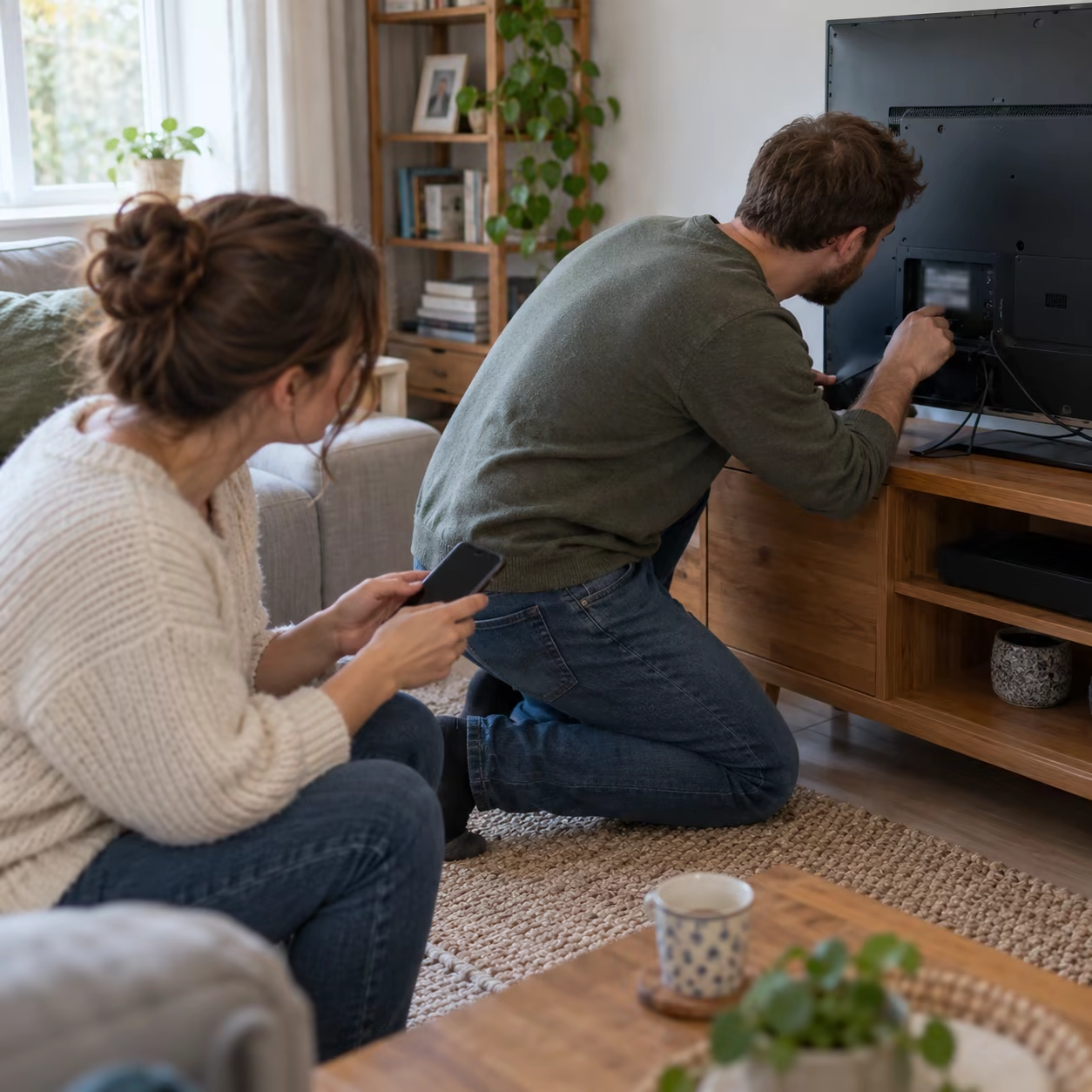
Use Wireless Display From Android
For a model whose manual confirms Wireless Display:
- Press Source/Input on the Bush remote.
- Select Wireless Display and leave the ready screen open.
- On the Android phone, open its mirroring control—often Smart View, Wireless Display, Screen Cast, or Screencast.
- Select the TV and approve the request if prompted.
- Test the Home Screen and a local photo before opening a streaming service.
The word “Cast” on Android is ambiguous. Some phones, especially Google Pixel models, prioritize Google Cast and do not expose a general Miracast sender. A Miracast-only Bush TV will not appear in a Google Cast list.
Use Wireless Display From Windows
Open the Bush Wireless Display or Display Mirroring screen. On a Miracast-capable Windows PC, press Windows + K, select the TV, and accept the request. Use Windows + P to choose Duplicate or Extend.
If Windows says the device does not support wireless display, update graphics and Wi-Fi drivers and check hardware support. A TV firmware update cannot add Miracast to an unsupported PC.
Connect iPhone to a Bush TV
iPhone uses AirPlay, not Miracast. If the exact Bush model or Fire TV edition documents AirPlay, put both devices on the same network, enable AirPlay, and select the TV under Control Center > Screen Mirroring.
If AirPlay is absent, use an Apple TV, a compatible external receiver, or HDMI. If the Bush TV runs Android TV and provides Google Play, AirMirror may be installed as a receiver for compatible iPhone, iPad, or Mac mirroring. Confirm the operating system and store availability first; the Bush name alone is not enough.
Fix Bush Wireless Display Not Connecting
- Return the TV to its waiting/receiver screen.
- Verify that sender and TV support the same protocol.
- Restart both devices and remove an old blocked-device entry using the model manual.
- For AirPlay or Google Cast, use the same normal LAN and disable a blocking VPN or guest isolation.
- For Miracast, remember that Wi-Fi Direct requirements differ from router-based casting.
- Update the TV only with firmware for the exact Bush model.
Do not test first with DRM-protected video. Use a Home Screen, local photo, or presentation, then switch to the app's official TV playback route if only protected content fails.
Choose the Right Alternative
For mixed-device homes, an external receiver can provide a consistent target without pretending the protocols are interchangeable. A wired HDMI connection avoids wireless discovery but still requires a compatible phone adapter and may remain subject to content-protection rules.
Wireless Display Bush TV FAQ
How to connect iPhone to Bush TV wirelessly?
Use AirPlay only when the exact Bush model supports it, or add an AirPlay-capable receiver. The Wireless Display source on many Bush TVs is Miracast and does not accept native iPhone mirroring.
Why is my phone not connecting to my TV?
The devices may use different protocols, the TV may not be on its receiver screen, or local-network isolation may block discovery. Confirm the model and sender before resetting anything.
Does every Bush TV have screen mirroring?
No. Features vary by model, generation, and operating system. Search the rear-label model number in Bush or Argos support and follow its manual.