TV Not Showing in iPhone Screen Mirroring? Try These Fixes
TL;DR: The iPhone Screen Mirroring list shows AirPlay receivers, not every smart TV. Confirm that the exact TV model supports AirPlay or that AirMirror Receiver is open on an Android TV. Then check that both devices share the same home network, reload discovery, and update the receiver and iPhone.
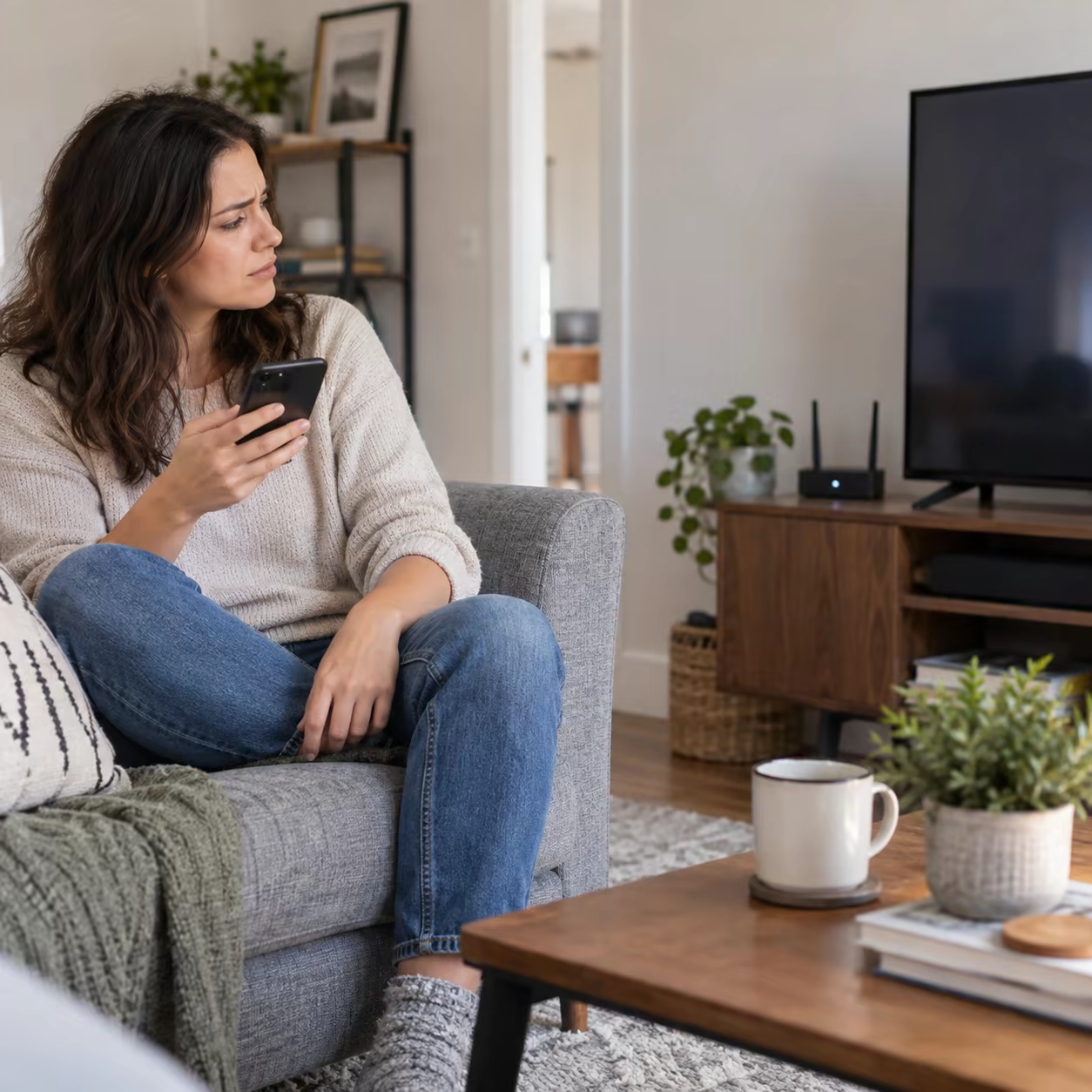
This guide covers the stage before a connection starts. If the TV appears and connects but later freezes or drops, use the screen mirroring disconnect and lag guide.
Find the Cause First
| Symptom | Likely cause | First check |
|---|---|---|
| TV has never appeared | No AirPlay-compatible receiver | Verify the model or open AirMirror |
| TV used to appear | Receiver stopped advertising or a session is stale | Reopen AirPlay/AirMirror |
| TV appears in YouTube Cast but not Screen Mirroring | Google Cast is available, but AirPlay is not | Use Cast for media or add an AirPlay receiver |
| TV appears but pairing fails | Access rule, stale code, or software issue | Review receiver access and restart |
If the terminology is unclear, compare AirPlay, app-level casting, and screen mirroring before changing network settings.
Fix a TV Missing From Screen Mirroring
1. Verify AirPlay Receiver Support
Check the official specification for the exact TV model and firmware, or look in its settings for AirPlay or Apple AirPlay & HomeKit. A generic Miracast, Wireless Display, Smart View, or Google Cast label does not mean the TV can appear in the iPhone's AirPlay list.
Compatibility varies by model, year, region, and firmware—even within one TV brand.
2. Turn On or Open the Receiver
Enable native AirPlay and keep the TV awake. For an Android TV without native AirPlay, install and open AirMirror Receiver, then note the receiver name displayed on the TV.
Reopen iPhone Control Center > Screen Mirroring and look for that exact name. AirMirror's official setup requires the receiver to be running on the Android TV and both devices to share the same local network.
3. Check the Home LAN
AirPlay discovery normally needs the sender and receiver on the same home LAN. Cellular data may remain enabled; the iPhone simply needs to be connected to the local Wi-Fi.
If discovery fails, compare the Wi-Fi name/SSID on both devices as a quick test. Avoid guest, hotel, school, or public networks that block device-to-device traffic, and temporarily disable a VPN. A router's AP/client-isolation setting can also prevent local discovery.
4. Reload Discovery in the Right Order
Turn the TV receiver off and on, or close and reopen AirMirror. Close and reopen the iPhone's Screen Mirroring list. Next, restart the TV and iPhone. Restart the router only if local-device discovery still fails or other devices are also affected.
Apple's AirPlay troubleshooting guidance likewise prioritizes powered-on nearby devices, current software, the same network, and restarts.
5. Update and Check Access Rules
Update iOS, the TV firmware or Android TV system, and the receiver app. Review any allowed/blocked-device list and accept a first-use code. For receivers managed through Apple's Home app, check whether Speakers & TV access settings restrict the iPhone.
Do not reset iPhone network settings first; that removes saved Wi-Fi and VPN configuration without fixing an incompatible receiver.
After the TV Appears
Return to Control Center > Screen Mirroring, select the receiver name, and enter the TV code if requested. The complete connection steps are in how to mirror iPhone to Android TV.
If the TV supports only Google Cast, use the Cast button inside a compatible iPhone media app. That is app-level media casting, not full-screen iPhone mirroring.
TV Not Showing in iPhone Screen Mirroring FAQ
Why is my TV not discoverable for screen mirroring?
It may lack a compatible AirPlay receiver, the receiver may be off, or the home network may block local discovery. Verify the exact TV model or open AirMirror on Android TV before troubleshooting Wi-Fi.
Why is my iPhone not recognizing my TV?
Confirm that both devices share the same home LAN and that AirPlay or AirMirror is actively receiving. Reload the receiver and Screen Mirroring list, then restart and update both devices.
Why isn't my TV popping up on my phone?
If the TV appears in a Cast-enabled app but not in Control Center, it probably offers Google Cast rather than AirPlay. Use app-level casting for supported media or add an AirPlay receiver for full-screen mirroring.
How do I make my TV visible on AirPlay?
Enable AirPlay on a compatible TV or keep AirMirror Receiver open on Android TV, then connect both devices to the same home network. Check the SSID, guest-network isolation, and VPN only if the receiver still does not appear.