Screen Mirroring Disconnects or Lags? Quick Fixes
TL;DR: Your iPhone is already connected to the Android TV, but the mirrored screen freezes, lags, or disconnects. Keep both devices on the same stable home LAN, leave AirMirror Receiver open, restart the session, move closer to the router, and pause heavy network activity. Treat delayed controls separately from Wi-Fi drops.
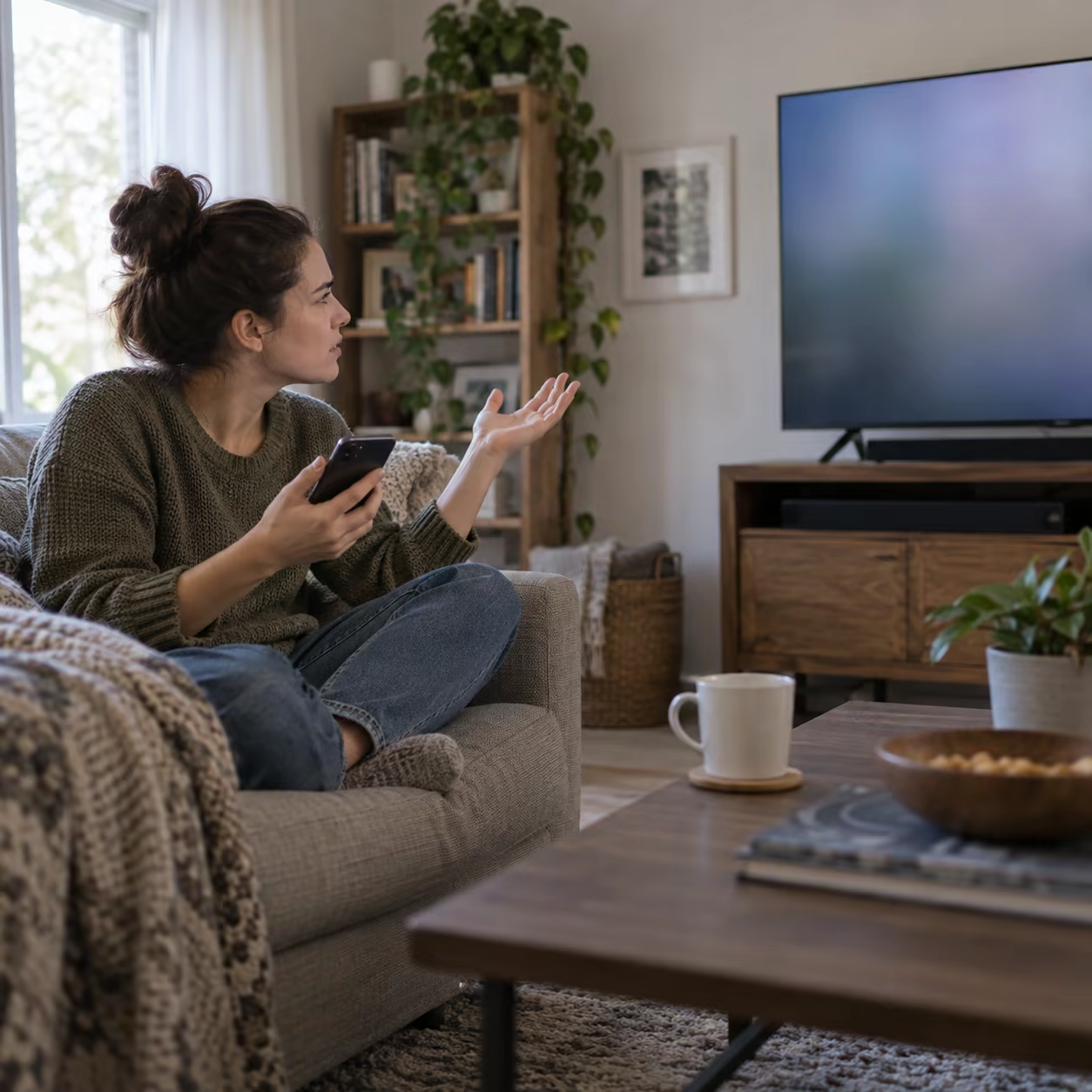
If the TV never appears in the first place, use the TV discovery troubleshooting guide. For initial setup, see how to mirror iPhone to Android TV.
Match the Fix to the Symptom
| After connecting, you see… | Likely layer | Start with |
|---|---|---|
| Session ends or reconnects | Unstable local connection or stale receiver session | Stabilize LAN and restart the session |
| Video freezes, stutters, or buffers | Congestion, interference, or sender load | Reduce traffic and distance |
| Image is smooth but taps feel delayed | Mirroring plus TV processing latency | Test a supported low-latency mode |
| Only protected video is black | DRM or app playback restriction | Test local content and use an approved playback path |
These are different failures. Do not use display settings to repair disconnects, and do not keep tuning Wi-Fi when only one protected title is black.
Fix Repeated Disconnections
- Keep both devices on the same home LAN. Cellular data may stay enabled as long as the iPhone remains connected to the local Wi-Fi. Avoid guest networks, VPNs, hotspots, and router client isolation during testing.
- Keep the receiver active. Leave AirMirror Receiver open on the Android TV. Stop mirroring, reopen AirMirror, and start a fresh session.
- Restart the endpoints. Restart the iPhone and Android TV before rebooting the router. If the router separates or isolates Wi-Fi bands, testing both devices on the same SSID is useful, but the real requirement is a mutually reachable LAN.
- Update the path. Update iOS, the Android TV system or TV firmware, and AirMirror. Apple also recommends current software, nearby powered-on devices, the same network, and restarts for AirPlay problems.
If every drop occurs at the same action, note the iPhone model, TV model, Android TV version, receiver version, network layout, and exact failure step before contacting support.
Fix Freezing, Stutter, or Buffering
Move the iPhone, TV, and router closer together and reduce walls or interference. Pause large downloads, cloud backups, and game updates; close CPU-heavy apps on the iPhone.
A clear 5 GHz link can perform well at short range, while 2.4 GHz may be more stable through distance or walls. Choose the connection that is stable in the room rather than assuming one band is always faster.
Full-screen mirroring must continuously produce and transmit the live display. For a supported movie or song, app-level Cast or media AirPlay may be smoother because the receiver handles the selected media. See AirPlay vs casting vs screen mirroring for the correct use case.
If AirMirror exposes a quality control on your current device, test a lower resolution or bitrate. Do not claim a specific resolution control exists on every version or TV.
Fix Slow Control Response
Some delay is normal because the iPhone produces a live display stream and the TV decodes and processes it. If the picture remains smooth but taps or game actions appear late, try a low-latency or Game Mode only when the current TV input or receiver app supports it. This can reduce TV-side picture processing; it does not fix disconnects or buffering.
For gaming, live drawing, or a critical presentation, a compatible HDMI adapter offers a more predictable low-latency path for local content.
Rule Out DRM
Test the home screen, a local photo, or an unprotected local video. If those work but Netflix, paid iTunes video, paid Google Movies, or another protected service is black or audio-only, the connection is already functioning. AirMirror does not bypass DRM; use that service's TV app or an officially supported casting route.
Screen Mirroring Disconnects or Lags FAQ
Why did screen mirroring suddenly stop working?
The local connection may be switching routes, losing signal, or running through a VPN, guest network, or stale receiver session. Keep AirMirror open, use one stable home LAN, reconnect cleanly, and update both endpoints.
How to keep screen mirroring from turning off?
Keep the receiver active and test whether sender auto-lock or power-saving is interrupting the session. Treat those settings as diagnostics because behavior varies by device and app; also verify local-network stability.
Why is my Apple screen mirroring choppy?
Choppy playback usually points to congestion, interference, distance, or sender load. Test unprotected local media, reduce other network use, move closer, and use app-level media casting when the provider supports it.
How to fix screen cast delay?
If the picture is smooth but interactions arrive late, test a supported low-latency TV mode or use HDMI. Low-latency mode will not repair Wi-Fi drops or video buffering.