How to Mirror iPhone to Android TV
TL;DR: For wireless full-screen mirroring, open AirMirror Receiver on the Android TV, connect both devices to the same home network, then choose the TV under iPhone Control Center > Screen Mirroring. If the exact TV model has built-in AirPlay, use it directly. Use HDMI when wireless reliability or latency matters most.
Choose a Full-Screen Mirroring Method
| Method | Best for | Requirement |
|---|---|---|
| AirMirror Receiver | Android TV without native AirPlay | AirMirror open on the TV and both devices on the same home LAN |
| Built-in AirPlay | TV models that explicitly support AirPlay | AirPlay enabled on the TV |
| HDMI | Stable or low-latency display | Compatible iPhone adapter and HDMI cable |
Not sure whether you need AirPlay, casting, or full-screen mirroring? See AirPlay vs casting vs screen mirroring before choosing.
Method 1: Use AirMirror Receiver
AirMirror: TV Cast & Mirror turns an Android TV into a receiver for an iPhone, iPad, or Mac.
- Open the Google Play Store on the Android TV and install AirMirror.
- Launch AirMirror and keep its receiver screen open. Note the TV name it displays.
- Connect the iPhone and TV to the same home network. Cellular data may stay on; the iPhone just needs an active Wi-Fi connection to the LAN.
- Open Control Center on the iPhone and tap Screen Mirroring.
- Select the TV name shown by AirMirror and enter the on-screen code if requested.
To stop, return to Control Center > Screen Mirroring > Stop Mirroring.
Method 2: Use Built-in AirPlay
Some Android TV and Google TV models include AirPlay, but the platform or brand name alone does not guarantee it. Check the exact model specification or look for AirPlay or Apple AirPlay & HomeKit in the TV settings.
- Enable AirPlay on the TV.
- Put the TV and iPhone on the same home LAN.
- Open Control Center > Screen Mirroring on the iPhone.
- Select the TV and enter its passcode if prompted.
These steps follow Apple's official AirPlay mirroring flow. Menu names on the TV vary by manufacturer, model, and firmware.
Method 3: Connect with HDMI
HDMI avoids wireless discovery and is the most predictable option for a presentation or latency-sensitive local content.
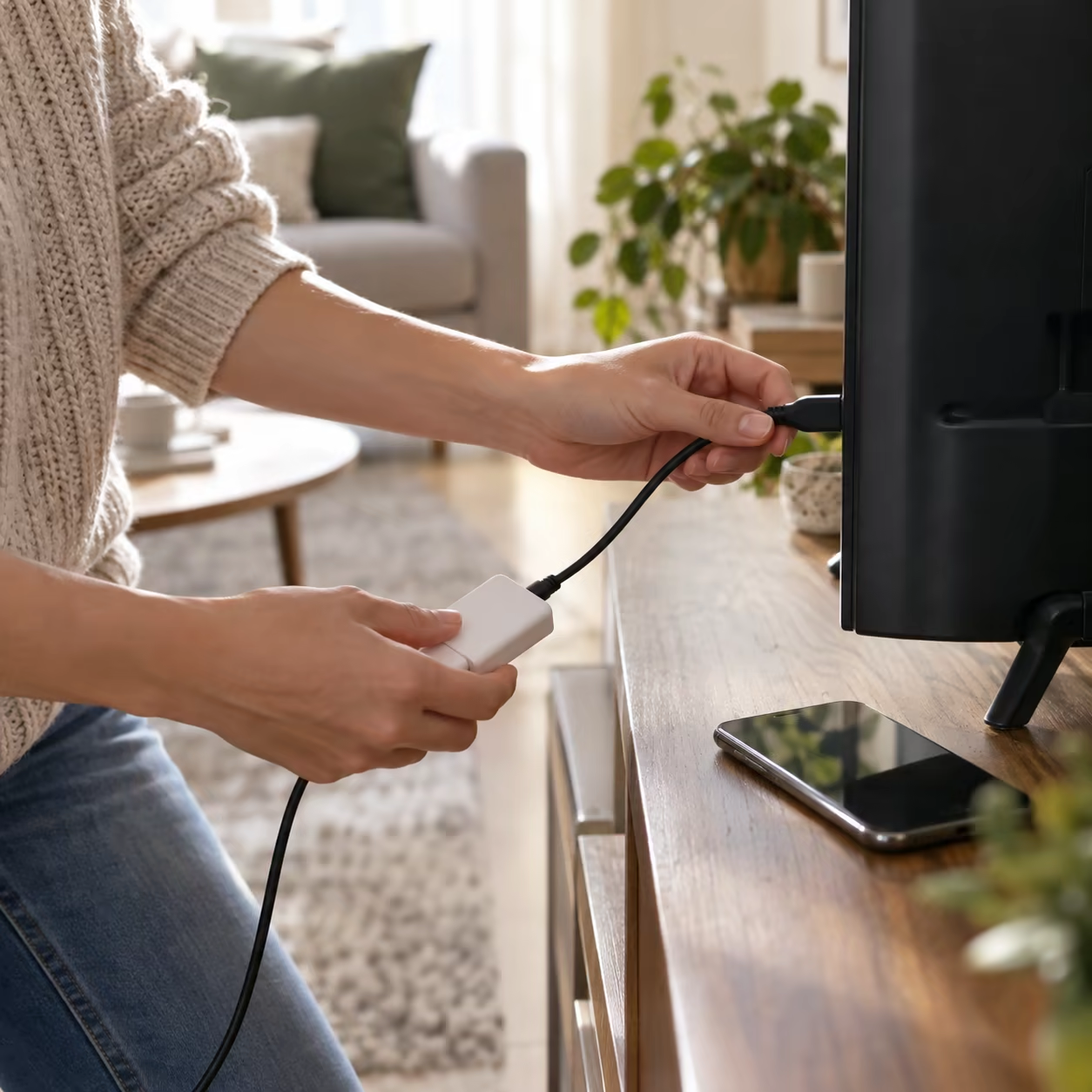
- Use a USB-C to HDMI adapter for a USB-C iPhone or a Lightning Digital AV Adapter for a Lightning iPhone.
- Connect the adapter to the iPhone and the HDMI cable to the TV.
- Switch the TV to the matching HDMI input.
HDMI does not guarantee that protected streaming video will play; each service controls its allowed external-display paths.
Google Cast is not full-screen iPhone mirroring. An iPhone can send media from a Cast-enabled app such as YouTube to a compatible Google Cast receiver. The app hands off supported media while the phone acts as a controller. Use Google's Cast instructions for that workflow, not the steps above.
If the Connection Does Not Work
Keep this setup guide focused on establishing the connection. Start with three checks:
- Verify that AirPlay is enabled or AirMirror is open on the TV.
- Confirm both devices share the same home LAN; comparing the Wi-Fi name/SSID is a useful test if discovery fails.
- Restart the receiver and reopen the iPhone's Screen Mirroring list.
If the TV never appears, use the dedicated TV missing from iPhone Screen Mirroring guide. If the connection starts but freezes or drops, follow the screen mirroring disconnect and lag fixes.
Mirror iPhone to Android TV FAQ
Can I mirror my iPhone to my Android TV?
Yes. Use built-in AirPlay when the exact TV model supports it, run AirMirror Receiver on the Android TV, or connect through HDMI.
Can I mirror my iPhone to my TV without Wi-Fi?
Wireless AirPlay or AirMirror normally needs a local network connecting both devices. Internet access is not the same as Wi-Fi: local mirroring can work without internet, but use HDMI when no suitable LAN is available.
Can you AirPlay to an Android TV?
Yes, if that TV model includes AirPlay or a compatible receiver such as AirMirror is running on it. Android TV by itself does not guarantee AirPlay support.
Why is my iPhone only playing audio and no video when I screen mirror?
If menus and local photos display correctly but one streaming title is black, the app is likely restricting screen capture through DRM. AirMirror does not bypass protected Netflix, paid iTunes, or paid Google Movies content; use the service's supported TV app or casting path.