How to Make Screen Mirroring Full Screen Without Stretching
TL;DR: Rotate the phone to landscape, use the video's full-screen button, and set the TV to a non-zoomed 16:9 or fit-to-screen mode. Black bars may remain when a tall phone screen or older 4:3 video does not match a 16:9 TV. Filling every pixel would require cropping or stretching.
Decide Whether the Bars Are an Error
Most TVs are 16:9. Phones are usually taller, so a full duplicate of a portrait phone cannot fill a widescreen TV without losing content or distorting it.
| What you see | Likely cause | Best action |
|---|---|---|
| Bars left and right in portrait | Phone orientation | Rotate to landscape if the app supports it |
| Bars on all sides | App window, receiver scaling, or TV picture size | Enter full-screen playback, then check fit mode |
| Image edges are missing | Zoom or overscan | Choose Screen Fit/Just Scan/Original |
| Bars only on one movie | Source aspect ratio | Preserve them unless cropping is acceptable |
| App stays vertical | App design | Use its TV app or Cast/AirPlay media button |
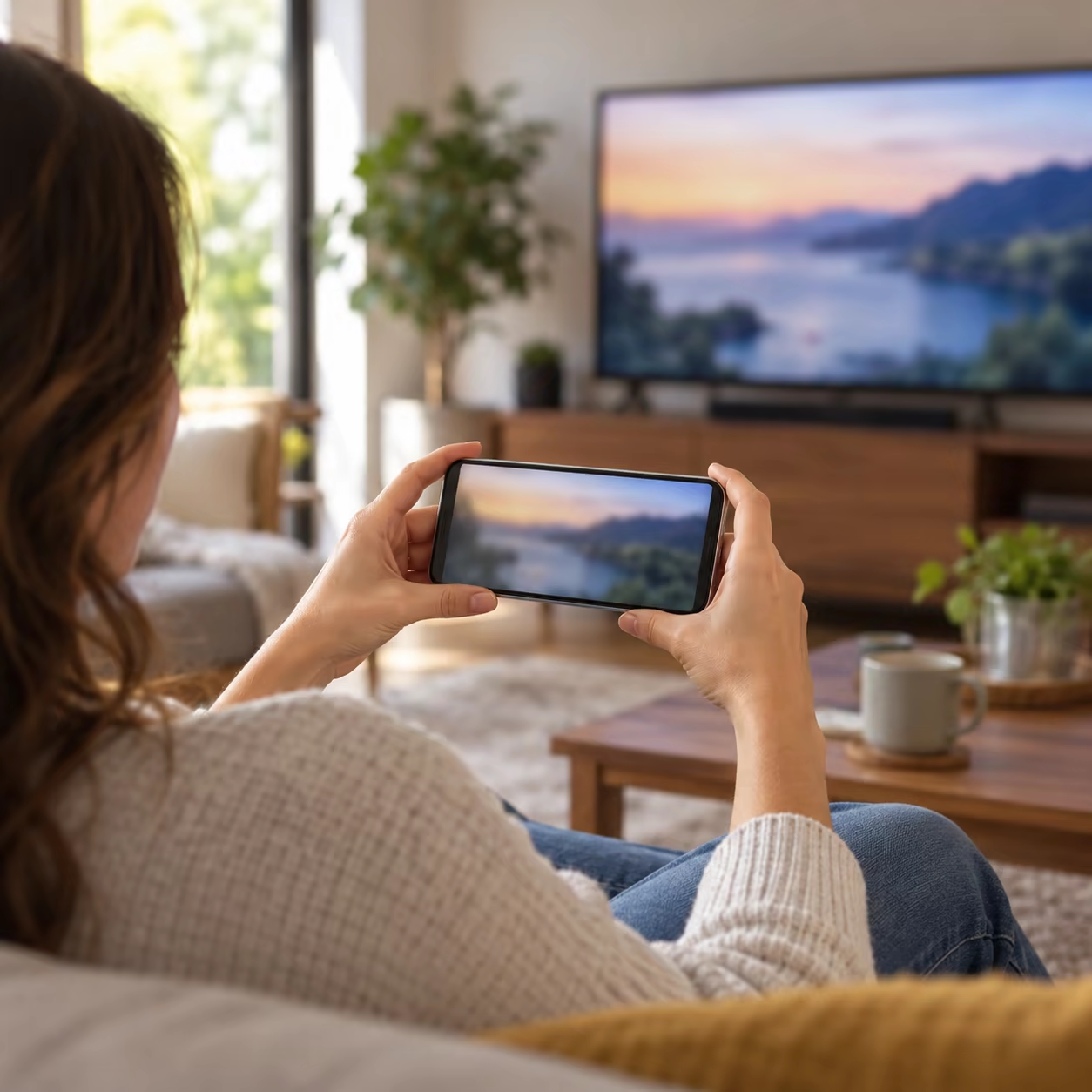
The goal is a correctly proportioned image, not an artificially stretched one.
Make Mirroring Fill More of the TV
1. Put the Source in Landscape
Turn off orientation lock, rotate the phone, and enter the app's own full-screen view. Some apps remain portrait-only; no TV setting can turn that layout into natural widescreen video.
For photos or slides, rotate the source before starting the session. On a computer, set the mirrored display to a standard widescreen resolution supported by the TV.
2. Choose a Fit Mode on the TV
Open the TV's picture-size or aspect-ratio menu while mirroring. Availability and labels depend on the TV model, input, region, and software; some wireless or built-in-app sources lock these controls. Common examples include:
- Samsung: Picture Size Settings, 16:9 Standard, or Fit to Screen.
- LG: Aspect Ratio, often 16:9, Original, or Just Scan.
- Other TVs: Screen Fit, Direct, Native, Original, or Auto.
Avoid Zoom, Wide Zoom, or overscan when menus and edges are cropped. Follow the exact TV manual rather than assuming one brand-wide path.
3. Use Smart View's Phone Aspect Ratio
On supported Samsung Galaxy phones, connect with Smart View, tap the floating Smart View icon, choose Phone or tablet aspect ratio, then select the desired view. Samsung's current Smart View guidance documents this control but also notes that Smart View is not available on every device. Labels and results can change by model and software.
This can enlarge the mirrored canvas, but it cannot convert portrait content into native 16:9 video without tradeoffs.
4. Prefer Media Casting for Widescreen Video
Full-screen mirroring reproduces the device display. A supported AirPlay or Cast button can hand the video to the receiver in its original media dimensions, often producing a cleaner 16:9 result. This is app-level casting, not the same as mirroring; compare the methods in AirPlay vs. casting vs. screen mirroring.
Use only a path supported by the app and TV. DRM-protected services may block full-screen mirroring or require their official TV app.
5. Reconnect After Changing Orientation
If the receiver keeps the old portrait canvas, stop mirroring, rotate the source to landscape, reopen the receiver, and connect again. Update the phone, TV firmware, and receiver app if scaling remains incorrect for every source.
Do Not Fix Bars by Hiding Content
Zooming until the bars disappear can remove subtitles, controls, heads, or scoreboards. Stretch modes make circles oval and people wider. For cinematic formats wider than 16:9, bars at the top and bottom are expected. For old 4:3 programs, side bars preserve the complete frame.
Test a 16:9 local video. If that fills the TV correctly, the remaining bars belong to the original source or app layout—not a broken mirroring connection.
Also compare the TV's native menu size. If menus reach every edge but mirrored content does not, the panel itself is working normally.
Make Screen Mirroring Full Screen FAQ
Why is my screen mirroring not full screen?
The phone, app, video, and TV may use different aspect ratios. Start with landscape orientation and a fit-to-screen TV mode, then test a known 16:9 video.
How do I make Smart View full screen?
While connected, tap the Smart View icon, open Phone aspect ratio, and choose the connected-device full-screen option if available. The exact label varies by Galaxy software.
How do I remove black bars when screen mirroring?
Use landscape, full-screen playback, and a non-zoomed fit mode. Keep the bars when removing them would crop or stretch source content.