How to AirPlay to Hisense TV: Check the Model First
TL;DR: Do not assume every Hisense TV supports AirPlay. Check the exact model's manual or specification for AirPlay/AirPlay 2. If supported, enable AirPlay and HomeKit, put the Apple device and TV on the same network, then use the app's AirPlay button or Control Center > Screen Mirroring. If unsupported, add a compatible receiver or use HDMI.
Verify AirPlay on Your Exact Hisense Model
Hisense sells Roku TV, Google TV, Fire TV, VIDAA, and other regional models. AirPlay support varies by model, market, year, and firmware. A brand-wide year list can become inaccurate; the model's current specification and manual are safer.
| What the manual lists | iPhone/iPad/Mac method | Limit |
|---|---|---|
| AirPlay or AirPlay 2 | Native media streaming and mirroring | Same local network normally required |
| Chromecast built-in only | Cast button in supported iPhone apps | Not full iPhone screen mirroring |
| Miracast/Screen Sharing only | Android/Windows sender | iPhone does not natively send Miracast |
| Android TV with Google Play | Compatible AirPlay receiver app | Confirm exact OS/store |
Use the exact model number at Hisense Support before choosing a path. For example, the official Hisense 55A65H e-manual documents AirPlay as an input and provides AirPlay and HomeKit settings. That proves the feature for 55A65H, not every Hisense television or region.
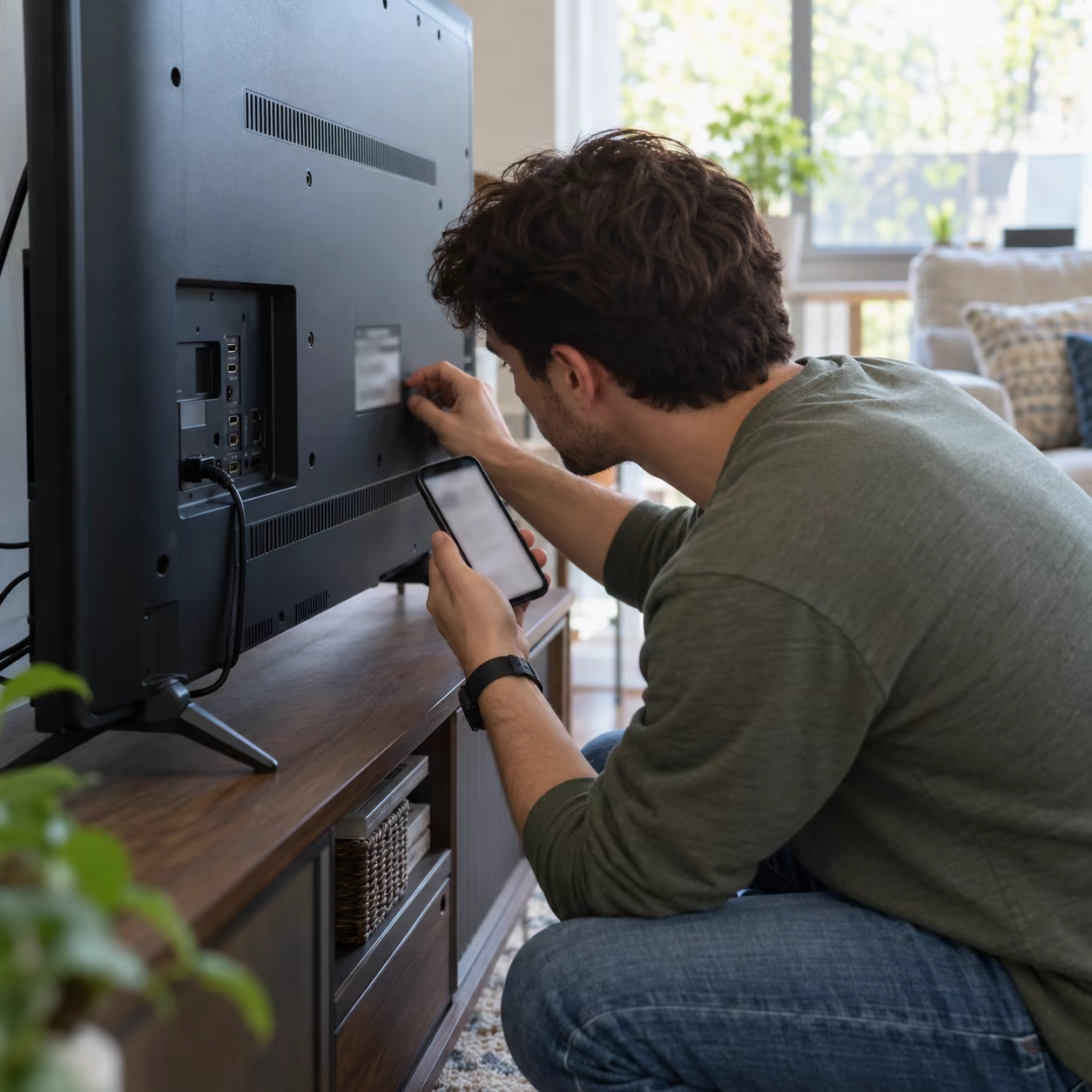
Enable AirPlay on Hisense TV
Menu paths differ:
- Some Hisense Google TV models expose AirPlay as an input and provide AirPlay and HomeKit Settings.
- Hisense Roku TV models that support it normally provide Settings > Apple AirPlay and HomeKit.
- Other platforms may use a different system menu or lack AirPlay entirely.
Open the model manual, enable AirPlay, and choose an access setting appropriate for the home. Leave the TV awake and connected. Do not confuse a Miracast Screen Sharing screen with AirPlay.
Stream Video or Photos From iPhone/iPad
Apple's current instructions are:
- Connect the Apple device and Hisense TV to the same Wi-Fi network.
- Open the photo, video, or supported app.
- Tap AirPlay—sometimes inside Share or another menu.
- Select the Hisense TV.
- Enter the TV passcode on the Apple device if asked.
App-level AirPlay sends the selected media. Availability depends on the app; if it offers no AirPlay support, check for its official TV app.
Mirror the Entire iPhone or iPad Screen
- Open Control Center.
- Tap Screen Mirroring.
- Select the TV name.
- Enter the onscreen passcode.
- To stop, return to Screen Mirroring and tap Stop Mirroring.
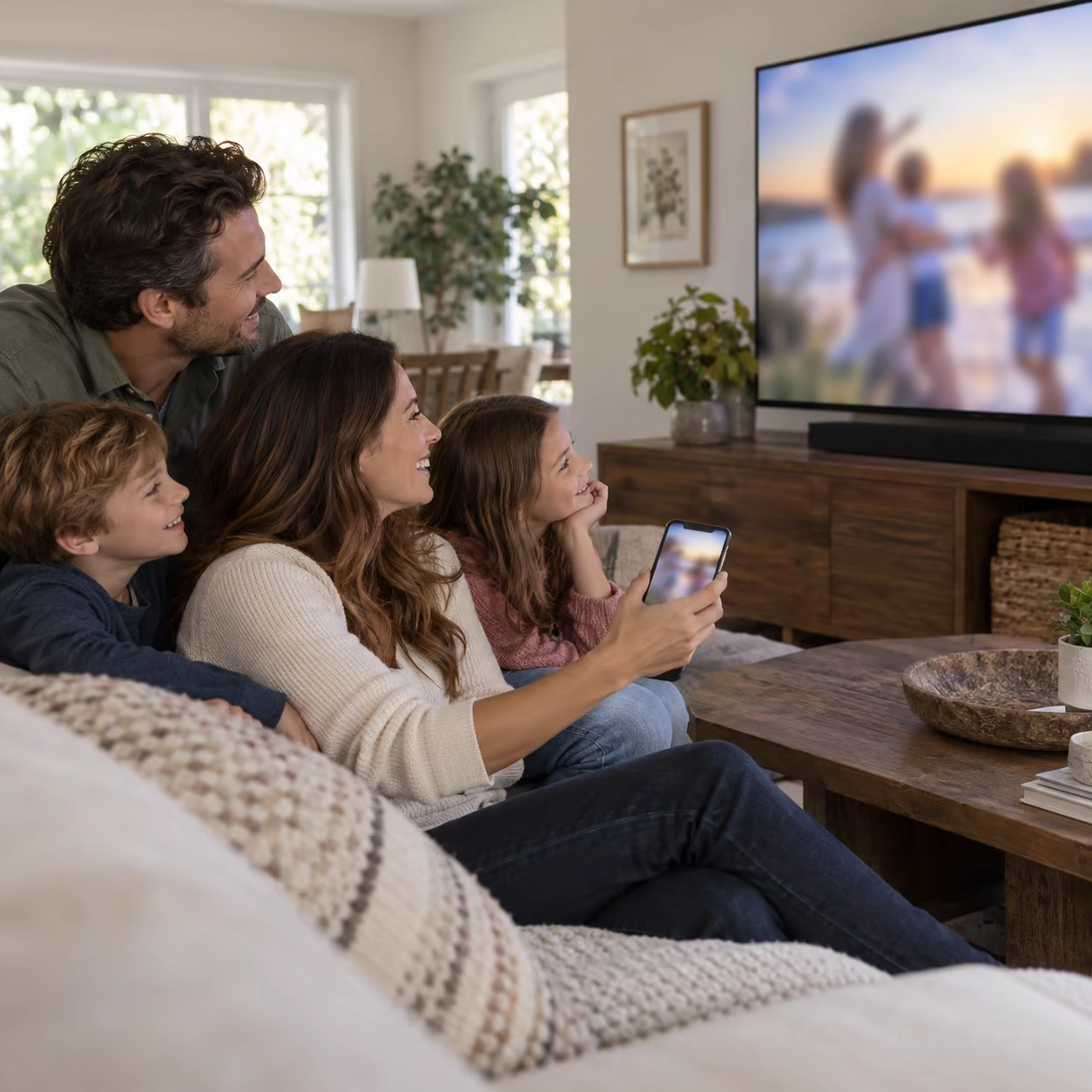
Screen mirroring shows notifications and the live device layout. For widescreen video, an app's AirPlay button often fits the TV better than duplicating a tall phone screen.
AirPlay From Mac
Use Control Center > Screen Mirroring and select the Hisense TV, then choose mirror or extended-display behavior as available. For audio or video inside a compatible app, select the AirPlay destination from that app instead.
If the Hisense TV Has No AirPlay
Add Apple TV or another compatible AirPlay receiver through HDMI. If the exact television runs Android TV and offers Google Play, AirMirror can receive compatible iPhone, iPad, and Mac mirroring over the local network. It does not add AirPlay to VIDAA, Roku, Fire TV, or another platform unless a compatible version is explicitly available there.
A compatible HDMI adapter is the wired fallback. Neither a receiver app nor HDMI can bypass DRM or an app's external-display policy.
Fix Hisense TV Not Appearing
Confirm the model supports AirPlay, enable it, use the same non-guest LAN, disable a blocking VPN, and restart the TV and Apple device. Update both sides. If the TV remains missing, use the iPhone mirroring discovery guide.
If the TV appears but refuses the session, watch for an onscreen passcode or access request. Test the Apple device Home Screen and a local photo after connecting. When those work but one subscription app does not, use that service's Hisense app or its supported media button instead of changing AirPlay settings.
How to AirPlay to Hisense TV FAQ
Can I use AirPlay on a Hisense TV?
Yes, when the exact Hisense model and regional firmware include AirPlay. Verify the model manual or specification; the brand name alone is not enough.
How can I connect my iPhone to Hisense TV?
Use native AirPlay when supported, a Cast button for compatible app media on Google Cast models, an external AirPlay receiver, or a compatible HDMI adapter.
Why can't I find AirPlay on my Hisense TV?
The feature may be disabled, located in a platform-specific menu, absent from that model, or unavailable until firmware is updated. Check the exact manual before troubleshooting the network.