Does iPhone Support Miracast? Use the Right Alternative
TL;DR: No—iPhone does not provide native Miracast screen mirroring. iOS uses AirPlay for whole-screen wireless mirroring. A Miracast-only TV therefore needs a separate AirPlay-capable receiver, a compatible cross-platform receiver on the TV, or a wired HDMI path. An app cannot make the iPhone's Control Center speak native Miracast to any TV.
Miracast and AirPlay Are Different
Miracast is a Wi-Fi Alliance wireless-display technology used most naturally by compatible Windows and Android devices. It usually creates a direct display connection and mirrors the live screen.
AirPlay is Apple's system for streaming media and mirroring an iPhone, iPad, or Mac to Apple TV, an AirPlay-compatible smart TV, a Mac receiver, or compatible receiver software. The similar outcome does not make the protocols interchangeable.
| Your TV has | Best iPhone method | What not to expect |
|---|---|---|
| AirPlay | Control Center > Screen Mirroring | No Miracast setting needed |
| Google Cast only | Cast button inside supported iPhone apps | Not general iPhone screen mirroring |
| Miracast only | Add AirPlay receiver or use HDMI | iPhone will not appear as Miracast sender |
| Android TV with Google Play | Install compatible AirPlay receiver | Confirm store and OS first |
| HDMI input only | Compatible iPhone video adapter | App/DRM rules may still apply |
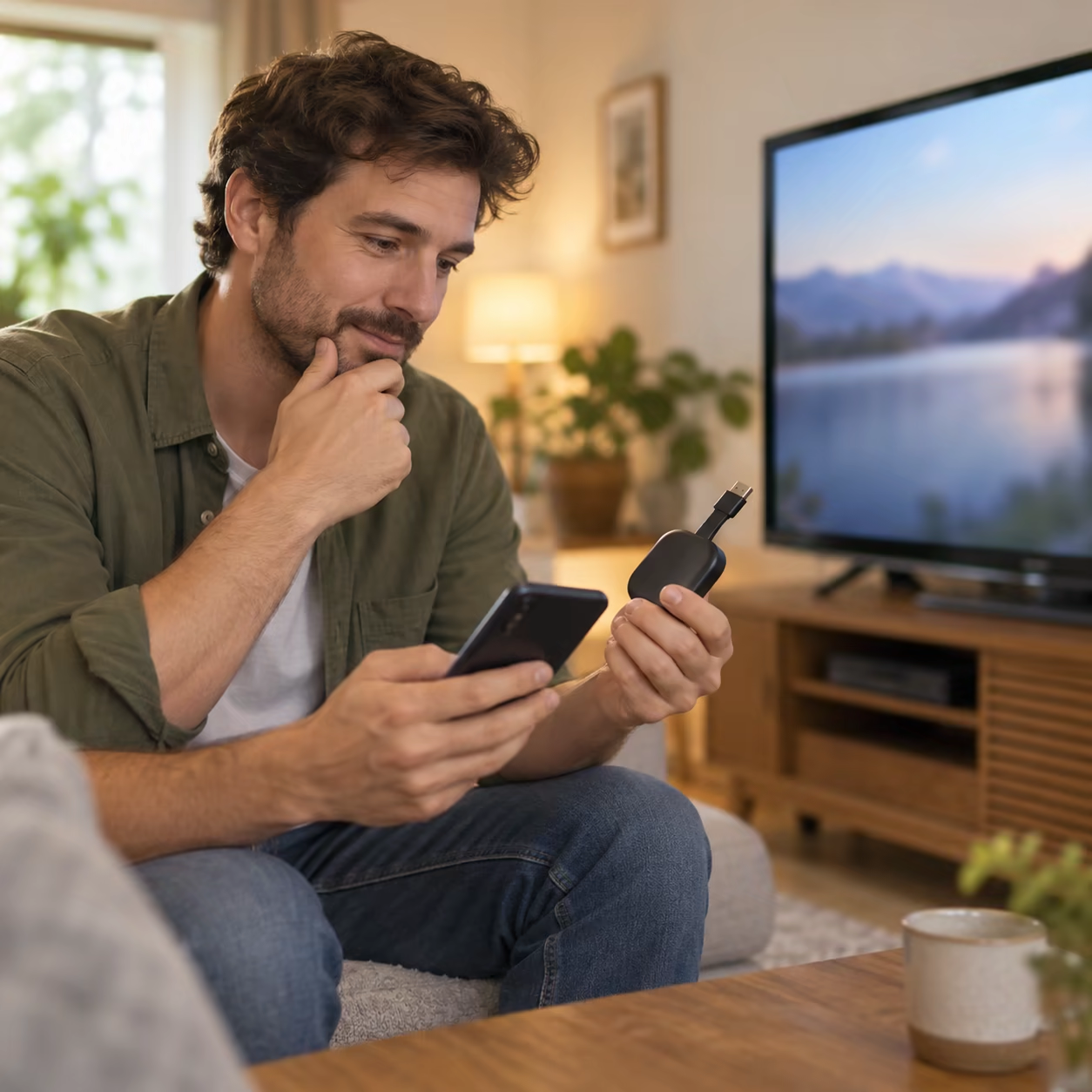
Mirror iPhone With AirPlay
- Put the iPhone and AirPlay receiver on the same Wi-Fi network.
- Open Control Center.
- Tap Screen Mirroring.
- Choose the TV or receiver.
- Enter the TV passcode if one appears.
For video from a supported app, its own AirPlay button may provide a better playback experience than duplicating the entire screen. Some apps do not support AirPlay and may require their TV app.
Use Google Cast From iPhone
iPhone apps such as YouTube can show a Cast button when a compatible Google Cast receiver is on the same network. The receiver then plays the selected media. This does not add Miracast to iOS and does not guarantee whole-screen mirroring.
Use the Cast button only when the app and TV both support it. A TV marketing page that says “casting” may mean Google Cast, AirPlay, Miracast, or only media sharing.
Add a Receiver to a Miracast-Only TV
An Apple TV or another AirPlay-capable HDMI receiver gives the iPhone a supported destination. If the television itself runs Android TV and offers Google Play, AirMirror can act as a receiver for compatible iPhone, iPad, and Mac mirroring on the local network.
AirMirror is not a Miracast sender and does not change iOS. It adds a compatible receiving path on supported Android TV hardware. It also does not bypass DRM-protected playback.
The receiver must be running and discoverable before you open Screen Mirroring. In a shared home or office, use its access controls or onscreen passcode so an unknown nearby device cannot start a session.
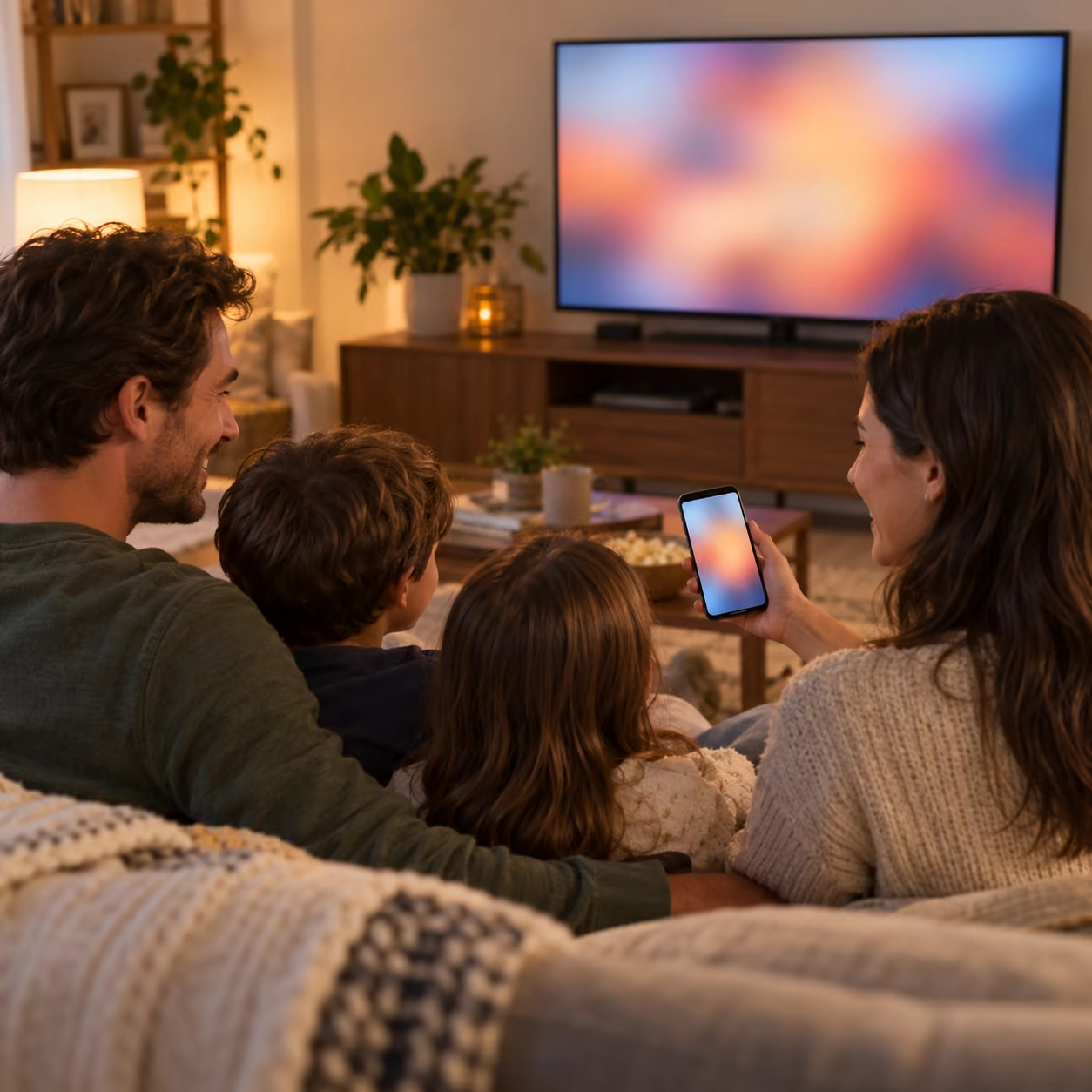
Use a Wired Connection
Use a video adapter that Apple documents for the connector and video-output capability of that iPhone, connect it to HDMI, then select that TV input. A wired path avoids wireless discovery but cannot override a streaming service's external-display or HDCP rules.
Avoid Misleading “Miracast for iPhone” Claims
An app may send photos, web video, or a proprietary mirror stream to its companion receiver, but that is not native Miracast from Control Center. Before installing anything, identify what must run on the TV, whether both devices need the same LAN, and which media types are supported.
Use the protocol comparison in AirPlay vs. casting vs. screen mirroring when a TV manual uses vague language.
Choose by the Job, Not the Label
For a presentation or live demonstration, AirPlay mirroring or HDMI shows the whole device interface. For YouTube or another supported service, app-level AirPlay or Google Cast lets the receiver play the selected media and may fit the screen better. For personal photos on an Android TV, a compatible receiver can be convenient when native AirPlay is absent.
Test with a Home Screen and a local photo before testing a paid streaming service. If ordinary content works but one service is black or refuses playback, its licensing or external-display policy is the boundary—not evidence that the iPhone needs Miracast.
Does iPhone Support Miracast FAQ
Does iPhone support screen mirroring?
Yes. iPhone supports native AirPlay screen mirroring to compatible receivers, but it does not natively use Miracast.
How do I mirror my iPhone to my Smart TV?
Use AirPlay when the exact TV supports it. Otherwise add an AirPlay receiver, use a supported app's Cast button, or connect a compatible HDMI adapter.
Can an iPhone app add Miracast?
An app can use its own receiver or media-sharing method, but it cannot add a universal native Miracast option to iOS Control Center.